Use the exact model and generation
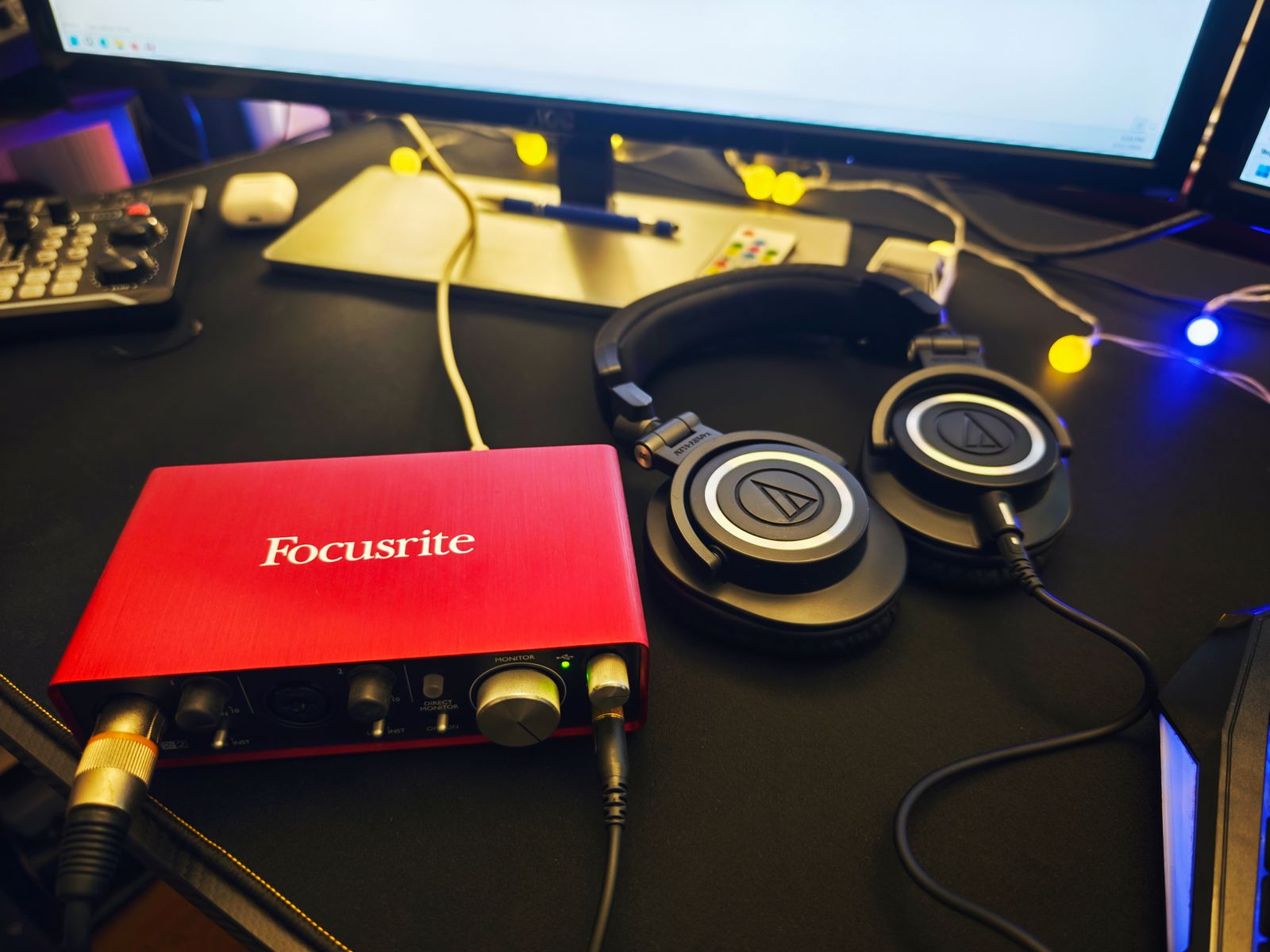
Find the complete interface model and generation, then use the manufacturer’s compatibility page. A similarly named older interface may use different software or have a different support status. Focusrite maintains separate Windows and macOS compatibility guidance, illustrating why a broad claim of computer compatibility is not enough.
Record the computer’s operating-system version and processor platform as well as its port types. On a used interface, confirm that the required software is still available from the official source. A low purchase price is less useful if the device needs an unsupported operating system or a connection your computer cannot provide reliably.
Install the intended software path
Download drivers and control applications from the manufacturer’s official page for the device. Follow its installation order, including any instruction about when to connect the interface. Some systems use a built-in audio driver while still needing a control application for routing; others require a specific driver. Do not copy another model’s procedure without checking.
After installation, select the interface in the recording application and confirm both input and output assignments. A computer can use one audio device for ordinary playback and another inside a recording program. Test a microphone input and headphone output rather than assuming a system notification sound proves the entire recording path works.
Update between projects, with a recovery plan
Before an operating-system or driver update, check compatibility for the recording application, plug-ins, and other hardware too. Focusrite’s Windows guidance advises against updating in the middle of a time-critical project. Save current project files, routing notes, and the working software versions so a change can be evaluated methodically.
After updating, reopen a representative session and test recording, playback, and any custom routing. If a problem appears, note the exact error and changed version before installing unrelated utilities. Follow the manufacturer’s troubleshooting steps and use a supported rollback route if needed. Keeping a known working configuration documented is more useful than repeatedly replacing drivers without knowing which change affected the system.
Prepare a useful support report
If the interface is not recognized or a recording fails, collect the exact device model, operating-system version, driver version, connection method, and recording application. Describe whether the device appears in the operating system and whether it appears inside the application. Those are separate observations. Include a short sequence that reliably reproduces the issue rather than listing every setting you have ever tried.
Test a simple direct connection where the manufacturer recommends it, then note whether a hub or adapter changes the result. Do not assume every peripheral problem requires reinstalling the operating system. A clear record narrows the issue and helps you avoid losing a working configuration while trying unrelated fixes. Keep any support instructions with the equipment notes so a successful repair can be repeated if necessary.