Build a compatibility list first
Record the exact DAW version, operating system, audio interface and essential plug-ins you plan to use. Visit each manufacturer's current requirements page. Check the operating-system version and processor architecture, not merely whether the product supports Windows or Mac in general. An older plug-in or interface driver can constrain a system that otherwise exceeds the DAW requirements.
Keep the list dated because support changes. If a computer purchase is planned for later, recheck before ordering. Avoid copying a numeric specification from an old forum post and treating it as a permanent threshold. The official requirement for the software version you will install is the relevant starting point.
Separate minimum from comfortable use
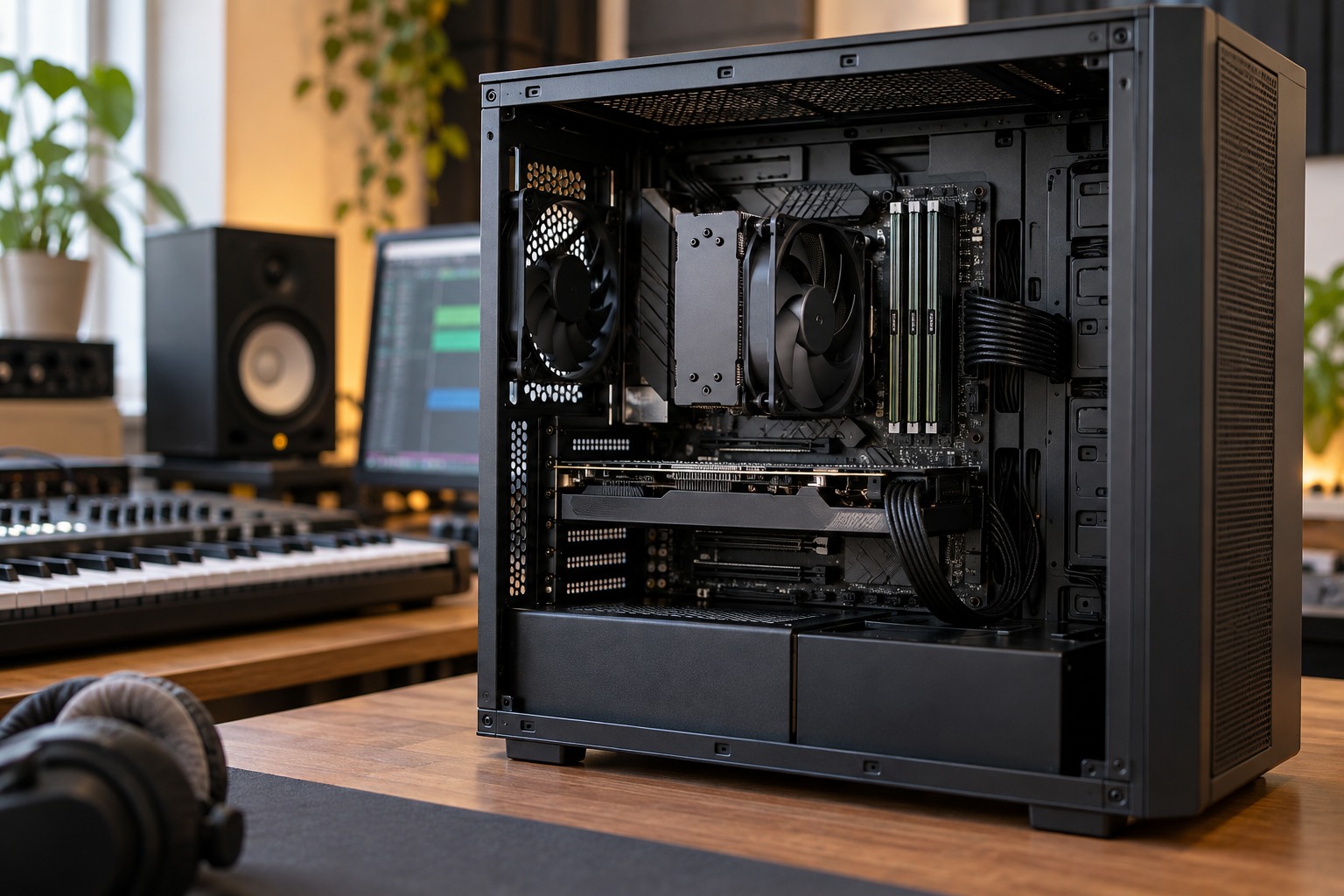
Minimum requirements indicate a supported baseline, not a promise that every project will run at a low buffer size. Ableton's computer guidance distinguishes processor, memory and storage roles. That distinction is useful when evaluating any DAW, although its detailed recommendations apply to Live rather than every application.
Describe a representative session: how many recorded inputs, which virtual instruments, whether video is involved and whether you need to play through software effects in real time. A voice-and-guitar recording has a different workload from a large orchestral template. Without that description, a recommendation for the best music computer is mostly a guess.
Check the connections and practical constraints
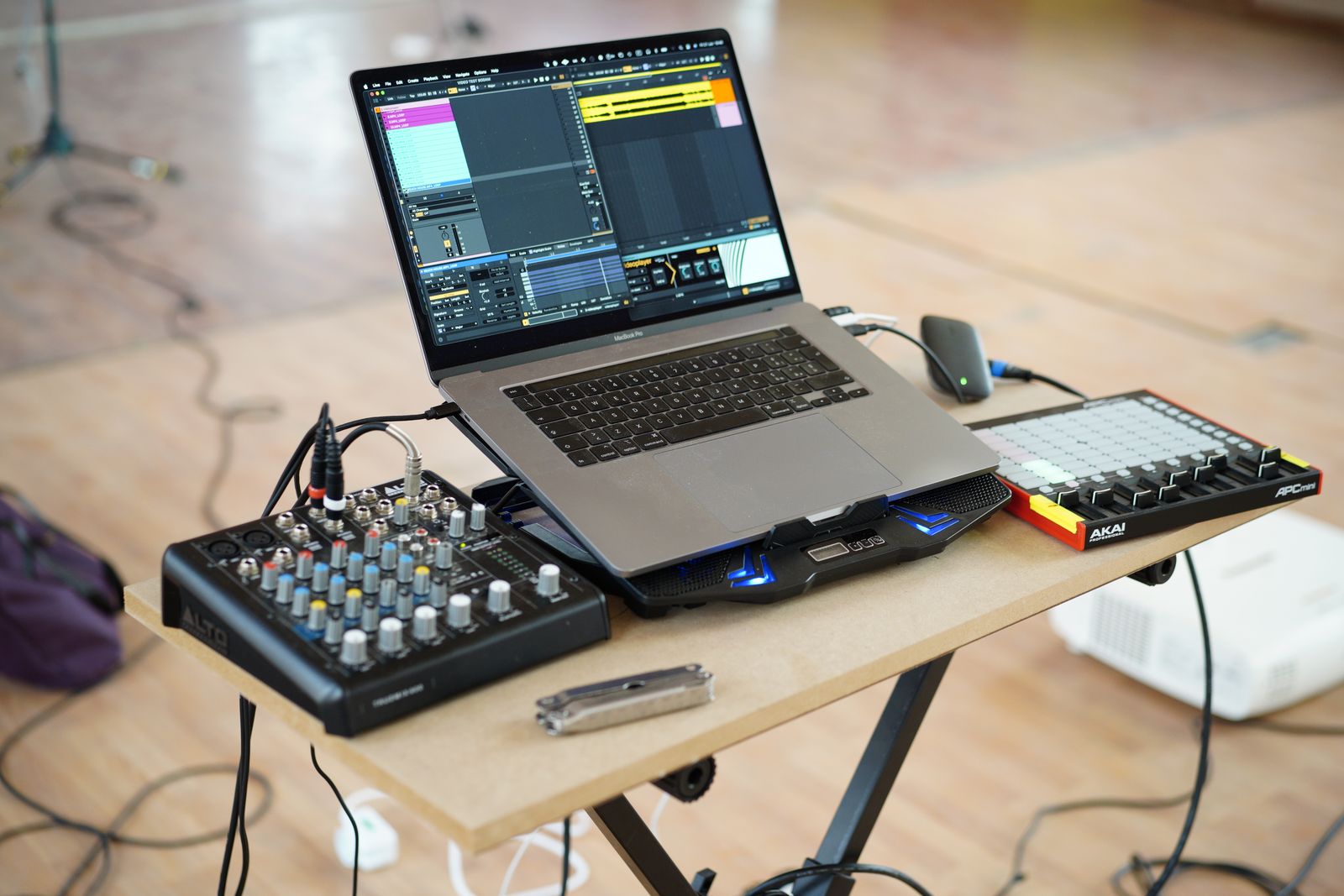
Count the ports required by the interface, controller, storage drive and any license hardware. Confirm connection standards as well as connector shape. An adapter may solve a physical mismatch but cannot create unsupported functionality. Include charging requirements on a laptop so that one available port is not accidentally counted twice.
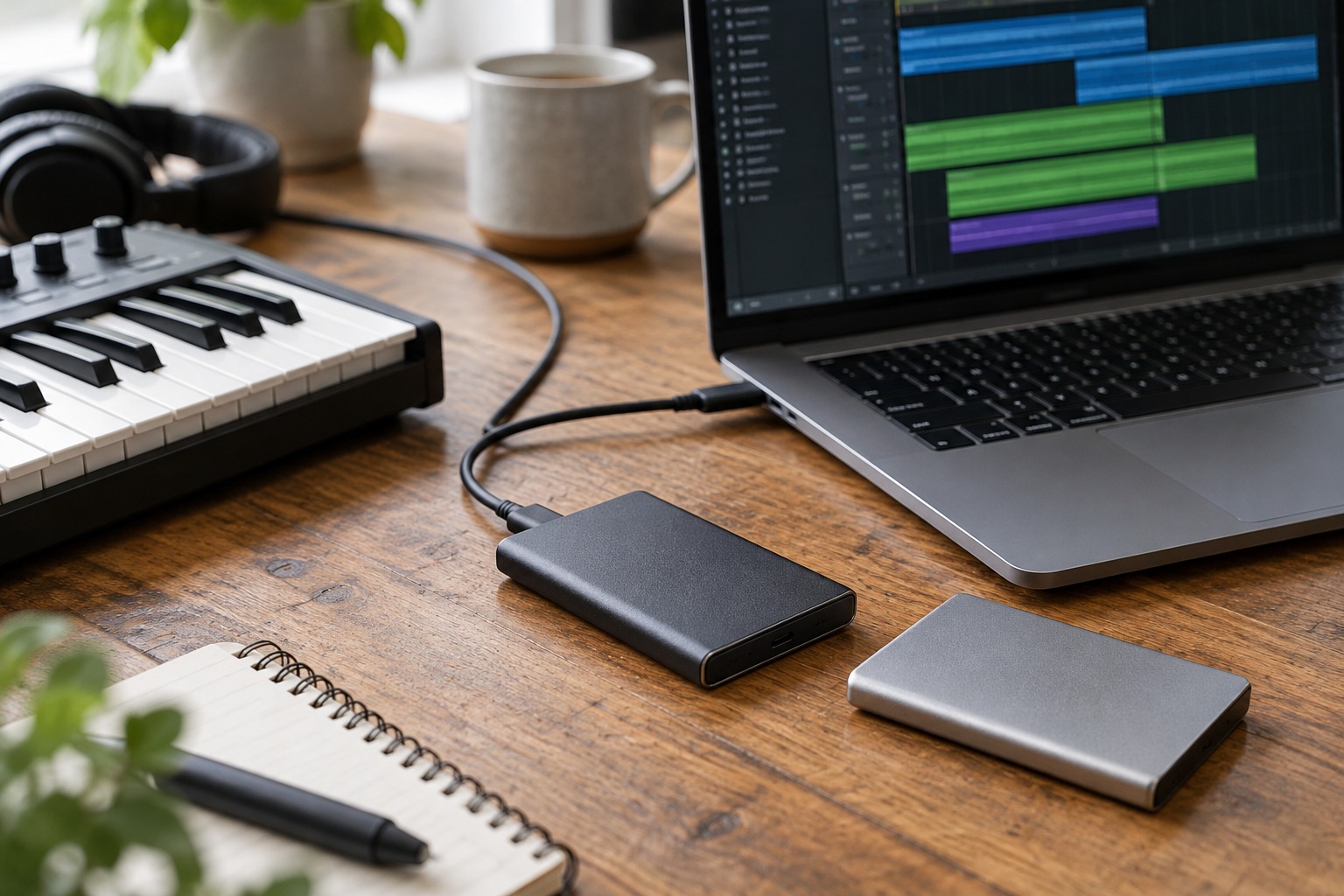
Storage planning should include applications, libraries, active projects, temporary downloads and backups. Check whether memory or internal storage can be expanded later. If they cannot, an initially low purchase price may leave little room for the workload you already know you want. A backup drive is still a separate need, not spare capacity inside the same computer.
Test a relevant session when possible
Use a trial or demonstration with the actual type of work you expect. Record a short input, play a virtual instrument and run the intended monitoring path. Observe stability at a usable buffer setting, not just how quickly the application opens. A successful empty session is weak evidence for a demanding project.
For a laptop, consider fan noise in the recording room, sustained operation and the placement of power and USB cables. A machine that performs well for a brief benchmark may still be inconvenient next to a sensitive microphone. Check the return terms so the system can be evaluated under realistic conditions without assuming that every advertised music-workstation label guarantees suitability.
Save the compatibility list with the purchase notes. It becomes a useful reference before future operating-system updates, which should be checked against the same interface and software dependencies rather than installed immediately before an important recording session.